
Quick Answer:
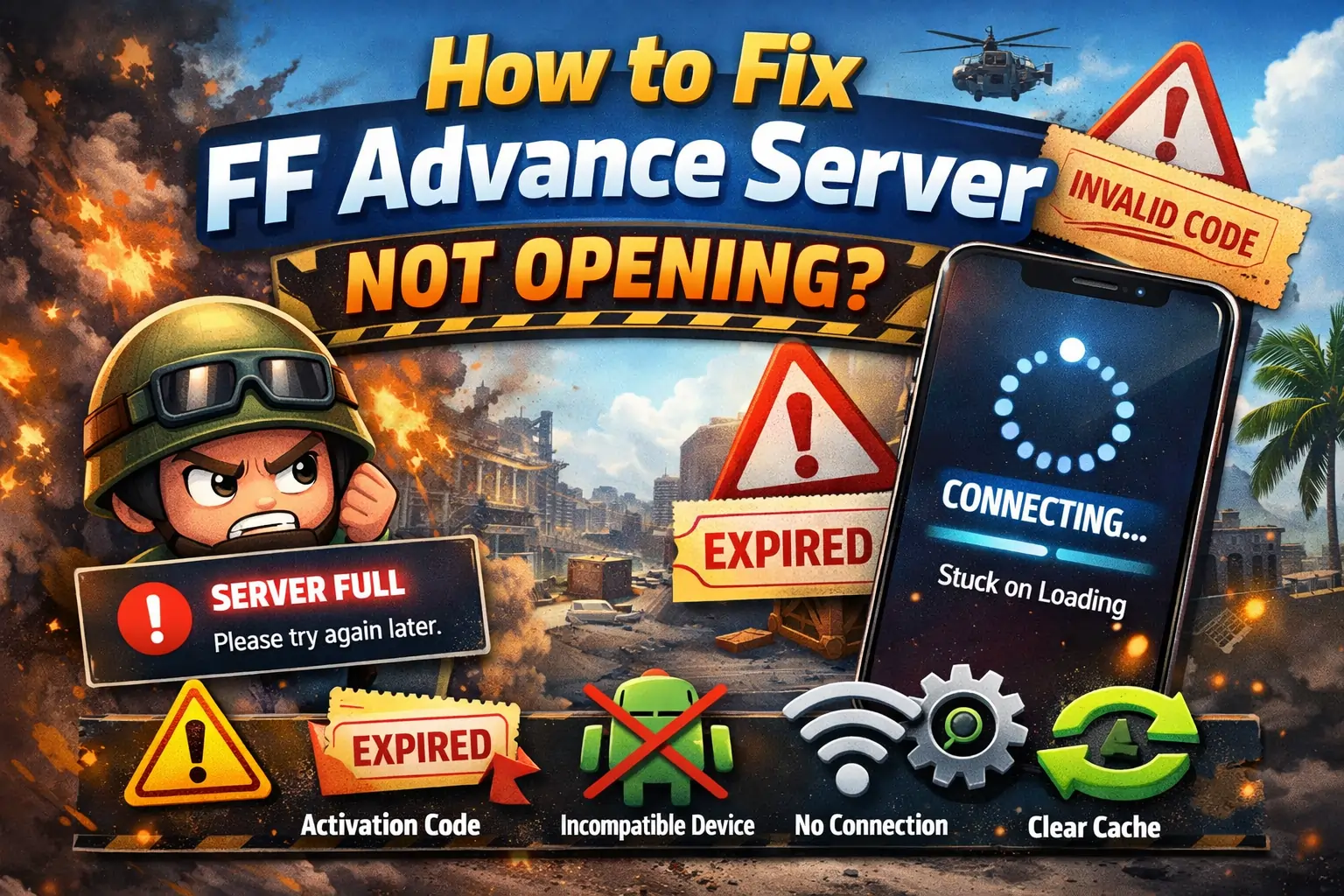
Free Fire Advance Server not opening? The most common fixes are: clear the app cache and data, re-download the official APK, check that the server is currently active (it closes after each cycle), verify your activation code is correct, and ensure your device meets the minimum 2GB RAM requirement.
If the Free Fire Advance Server is not opening on your device, you’re not alone. This is one of the most common issues players face during Advance Server testing phases. In most cases, the problem is related to server limits, device compatibility, or account restrictions not a permanent error.
This guide explains why FF Advance Server doesn’t open and how to fix it step by step without risking your account.
Why Is the Free Fire Advance Server Not Opening?
The Free Fire Advance Server is different from the regular games because it only works for a limited time and only for selected players. It has unique failure points that the regular game doesn’t have, which is why standard troubleshooting steps sometimes don’t apply. Other reasons include using a wrong or expired activation code, downloading the APK from an unofficial website, having a device that does not meet the minimum requirements, corrupted app data, or heavy server traffic.
Since the Advance Server is managed by Garena, access is strictly controlled, and normal troubleshooting steps may not always work. Always check the server dates and make sure everything is official before trying other fixes.
Why FF Advance Server Not Opening on Android? Common Reasons
If the Free Fire Advance Server is not opening on Android, the issue is usually related to server limitations, account access, or device compatibility. Understanding the exact reason helps you avoid unnecessary reinstallations and incorrect fixes.
1. Server Is Full or Temporarily Closed
The Advance Server allows only a limited number of players at a time. When the server reaches its maximum capacity or enters maintenance, new logins are blocked automatically. In this case, reinstalling the app or clearing data will not help, and waiting for the server to reopen is the only option.
2. Invalid or Expired Activation Code
Each activation code is generated for a single account and can only be used once during a specific testing phase. If the code has already been used, expired, or entered incorrectly, the Advance Server will refuse to open. You must wait for a new testing phase to receive another valid code.
3. Incompatible Android Version or Device
FF Advance Server requires a supported Android version and a 64-bit device architecture. Some older phones may install the APK successfully but fail to launch the app due to hardware or system limitations. Updating your Android version or using a compatible device is necessary in such cases.
4. Corrupted App Cache or Data
Since the Advance Server is installed using an APK file, cache files can sometimes become corrupted during installation or updates. This corruption can prevent the app from opening or cause it to crash immediately after launch.
5. Unstable Internet Connection
A slow or unstable internet connection can interrupt the login process between your device and the Advance Server. When this happens, the app may remain stuck on the loading screen or close instantly. Switching to a stable Wi-Fi connection often resolves this issue.
How to Fix FF Advance Server Not Opening on Android?(Step-by-Step)
If the Free Fire Advance Server is not opening, follow these steps in order. These fixes address the most common causes without risking your account or wasting time on unnecessary actions.
Check Official FF Advance Server Status
Before changing any settings on your device, confirm whether the Advance Server is currently open, full, or under maintenance. If the testing phase is closed or the server has reached its limit, the app will not open no matter what you do on your phone. In this case, waiting for the server to reopen is the only solution.
Restart Your Device and App
Restarting your phone clears temporary system glitches, background app conflicts, and memory issues that may block the Advance Server from launching. After restarting, open the app again and check if it loads normally.
Clear App Cache (Not Data)
Go to your phone’s app settings and clear the cache only for the Advance Server app. Cached files can become corrupted during APK installation, which may stop the app from opening. Avoid clearing app data, as it can remove login information and require reactivation.
Check Android Version and Device Compatibility
Ensure that your device meets the minimum Android version and hardware requirements needed to run the Advance Server. On unsupported or older devices, the app may install successfully but fail to open or crash immediately.
Reinstall the Advance Server APK (Only Once)
If the installation was interrupted or incomplete, uninstall the app and reinstall the APK once from the official source. Reinstalling multiple times does not improve access and can create additional errors, so limit this step to a single attempt.
How to Fix FF Advance Server Not Opening on PC? (Emulator)
FF Advance Server does not have official Windows support, so running it on a PC requires an Android emulator. Because of this, most PC-related issues are caused by emulator settings or system configuration rather than the server itself.
Use a Compatible Android Emulator
Choose a stable and updated emulator such as BlueStacks or LDPlayer. Older or unsupported emulators may fail to launch the Advance Server or crash during loading.
Enable Virtualization in BIOS
Virtualization must be enabled on your system for emulators to work properly. If it’s disabled, the Advance Server may not open, crash instantly, or stay stuck on the loading screen.
Switch to a 64-Bit Android Instance
FF Advance Server often does not run on 32-bit Android environments. Make sure your emulator is set to a 64-bit Android version, as this significantly improves compatibility.
Allocate Enough RAM and CPU
Low resource allocation can cause frequent crashes. Increase RAM (at least 4 GB recommended) and assign more CPU cores in the emulator settings, then restart the emulator.
Disable Hyper-V and Conflicting Windows Features
Windows features like Hyper-V or Virtual Machine Platform can conflict with Android emulators. Disabling these features and restarting your PC often resolves launch issues.
Avoid VPNs and Network Filters
VPNs, firewalls, or proxy tools on PC can block communication with Garena servers. Turn them off before opening the Advance Server.
Important Note: Garena does not officially support FF Advance Server on PC. Even with correct settings, access is not guaranteed, and Android devices remain the most stable option for testing.
Why Is FF Advance Server Stuck on the Loading Screen?
When the FF Advance Server opens but gets stuck on the loading screen, it usually means the app cannot complete its connection with the server. This often happens when the server is overloaded, temporarily restricted, or experiencing high traffic. An unstable or slow internet connection can also interrupt the login process, causing the app to remain stuck. In most cases, waiting for some time and trying again later is the only effective solution.
Why Does FF Advance Server Show a Login Failed Error?
The Login Failed error appears when the Advance Server cannot verify your account during the sign-in process. This issue is usually temporary and does not mean your account is banned or permanently restricted.
Login failures usually occur when:
- The account is not approved for Advance Server access
- The activation code is invalid or already used
- Third-party login services experience temporary issues
Trying again later or during a stable server phase often resolves this error.
Why Does FF Advance Server Keep Crashing After Opening?
If the Free fire Advance Server opens but crashes repeatedly, the issue is usually related to device performance rather than the server itself. Low available RAM, too many apps running in the background, device overheating, or insufficient free storage can cause the app to close suddenly. Closing unused apps, allowing the device to cool down, and freeing up storage space often helps resolve this problem.
Is Your Device Compatible With FF Advance Server?
Before trying to open the FF Advance Server again, it’s important to confirm that your device meets the basic compatibility requirements. Even small issues with system settings or network configuration can prevent the server from loading.
Make sure:
- Your Android version is supported
- You have enough free storage available
- Your internet connection is stable
- No VPN or proxy is active
Using a VPN can block server access completely and should be disabled before launching the app.
What Should You NOT Do When FF Advance Server Doesn’t Open?
When the Advance Server fails to open, some actions can actually make the problem worse or put your account at risk. Avoid these mistakes, as they do not improve access and may cause additional issues.
- Using modded or hacked APK files
- Entering fake or unofficial activation codes
- Reinstalling the app repeatedly in a short time
- Resetting, switching, or creating multiple accounts unnecessarily
These actions will not unlock the Advance Server and can lead to errors, access blocks, or account-related problems.
Conclusion
FF Advance Server not opening is usually a temporary or technical issue rather than a serious problem. In most cases, the cause is server capacity, activation limits, or device compatibility. By checking server status, ensuring your device meets requirements, and avoiding unsafe fixes, you can safely resolve the issue or know when waiting is the best option.
FAQs
Why does FF Advance Server open for others but not me?
FF Advance Server access is limited and depends on server capacity and account approval. Even if others can log in, the server may be full or your account may not be selected for that testing phase.
Can FF Advance Server stop working suddenly?
Yes, the Advance Server can close unexpectedly due to maintenance, bug fixes, or when the testing limit is reached. This is normal during test phases.
Does using a VPN affect FF Advance Server opening?
Yes, using a VPN can block your connection to the Advance Server. Garena may restrict access from VPN or proxy connections for security reasons.
Is FF Advance Server down or banned in some regions?
No, the Advance Server is not region-banned. Availability depends on testing schedules and server capacity, not geographic restrictions.
Why does FF Advance Server show a black screen after opening?
A black screen usually indicates server overload, device compatibility issues, or a temporary connection failure. Waiting and trying again later often resolves it.