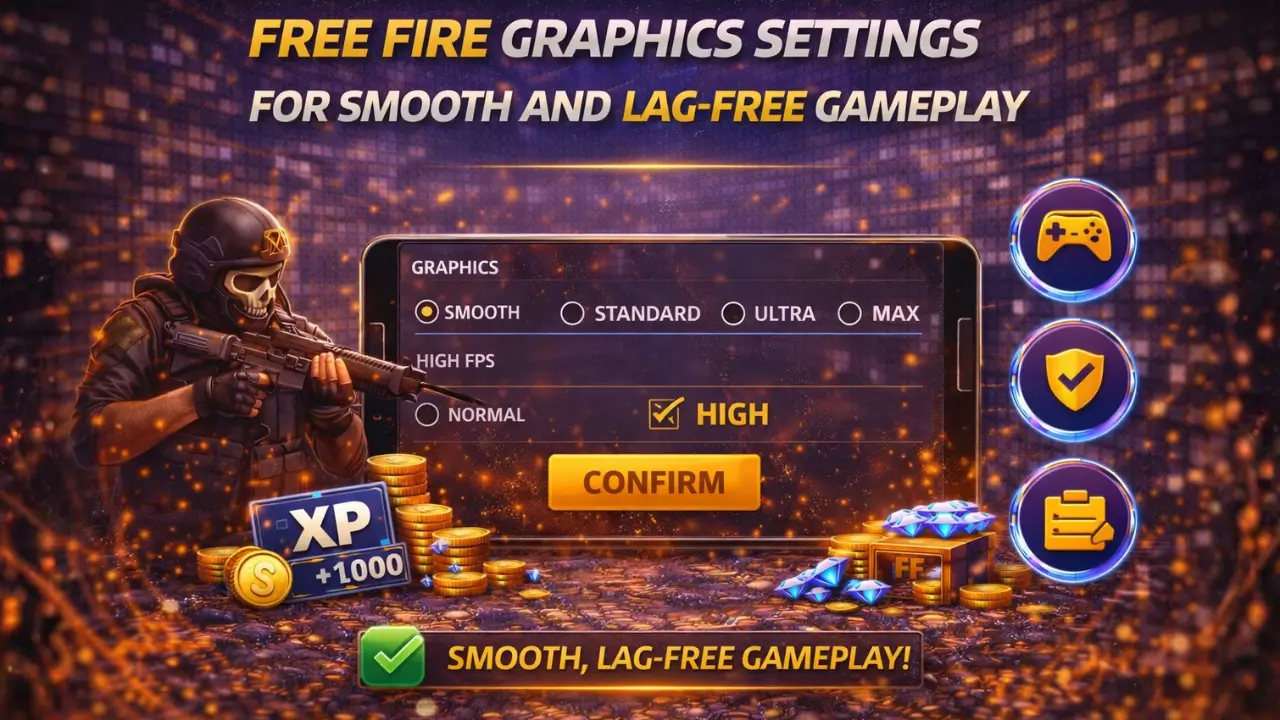
Free Fire runs faster when you pick the right graphics settings. Smooth gameplay helps you move, aim, and win without getting stuck. Imagine chasing an enemy and the game suddenly lags. You miss your shot and lose. That small delay can cost a match.
In this guide, you will learn easy ways to set up your Free Fire Graphics Settings so the game feels smoother on any phone. These tips work for both new and older devices. With the right setup, you can enjoy Free Fire without the frustration of slow gameplay.
Why Graphics Settings Affect Game Speed
Graphics settings decide how fast Free Fire runs on your device. Picking the right settings can make the game smoother and easier to play.
How FPS (Frames Per Second) Impacts Performance
FPS shows how many frames your game shows per second. Higher FPS makes the game smooth. Lower FPS can cause choppy movement and slow reaction. Good FPS settings help your phone run the game faster.
Resolution and Its Role in Smooth Gameplay
Resolution controls how clear the game looks. Higher resolution looks better but can slow your phone. Lower resolution uses less power and keeps the game smooth.
Effects of High vs Low Graphics on Devices
High graphics show more details like shadows and effects but can make older phones lag. Low graphics reduce details but improve speed. Choosing the right graphics keeps the game fast without making it look bad.
Recommended Graphics Settings for Free Fire
Choosing the right graphics settings makes your game faster and smoother. You can adjust quality, frame rate, and other options to match your device. While setting up your game, don’t forget to check the latest Free Fire Redeem Codes to get extra rewards and enhance your gameplay experience.
Setting Graphics Quality
Free Fire has Low, Medium, High, and Ultra graphics options.
Choosing the right level depends on your phone. If your game lags, pick lower settings.
Adjusting Frame Rate
Frame rate controls how many frames your game shows each second. Higher frame rate (like High or Extreme) makes movement smooth. Lower frame rate saves battery and prevents lag on weak devices. Match the frame rate to your phone: weak devices → lower FPS, strong devices → higher FPS.
Shadows, Textures, and Effects
Shadows, textures, and special effects make the game look realistic but use more power. Turning off shadows and effects, and keeping textures low or medium, improves speed. These changes can stop lag without hurting gameplay much.
Advanced Settings
Advanced options like anti-aliasing, rendering, and auto scale affect performance. Turning off anti-aliasing and high rendering features can make the game faster. Auto scale can stay on; it lets the game adjust graphics automatically. These tweaks are safe and help keep the game smooth on most devices.
How to Set Up Free Fire Graphics for Faster Gameplay
You can make Free Fire run faster by adjusting the graphics settings on your device. Here is a step-by-step guide for both Android and BlueStacks.
For Android Devices
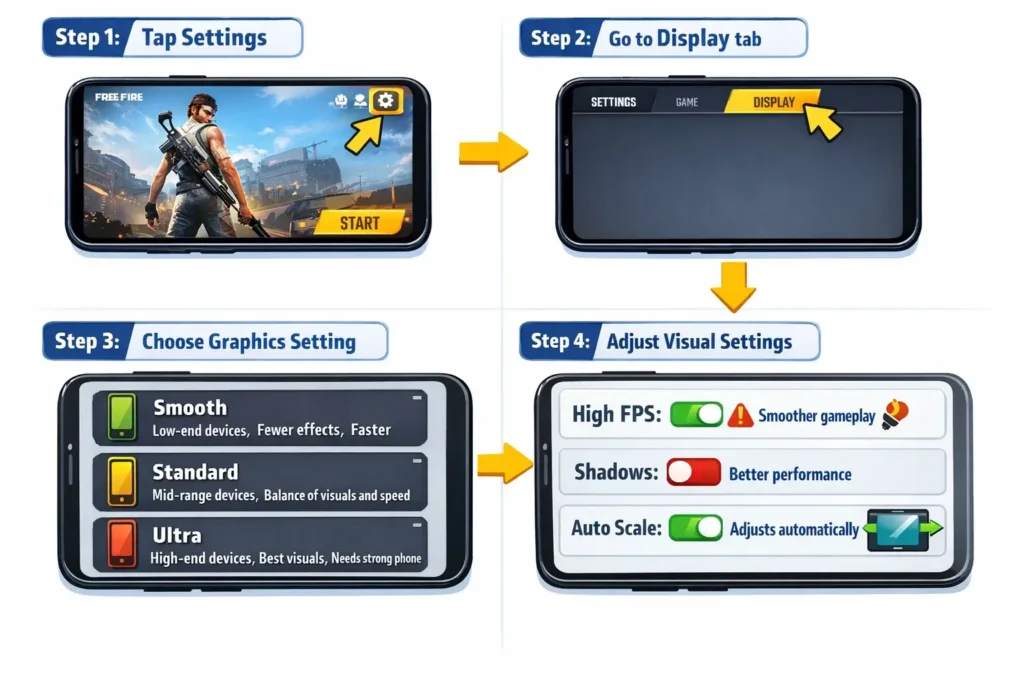
First, open Free Fire on your phone. Tap the gear icon to go to Settings, then select the Display tab.
Next, choose a Graphics Option:
Then, adjust the visual settings:
For BlueStacks Users (Emulator)
If you play Free Fire on PC using BlueStacks, start by opening BlueStacks settings. Select Custom (6000 MB) Memory Allocation and restart the emulator.
Next, open Free Fire MAX in BlueStacks. Go to Settings → Display, then use these parameters:
Following these steps helps your game run faster and reduces lag, whether you play on a phone or PC.
How to Adjust Free Fire Graphics for Different Devices
Different devices may need different tricks to make Free Fire run faster. Here are tips for Android, iOS, and older devices.
Android Devices
On Android, close background apps and turn on battery-saving mode to free up resources. Lowering screen brightness and turning off animations can also improve performance. These small tweaks help keep the game smooth without slowing your phone.
iOS Devices
For iPhones and iPads, keep your device cool to avoid overheating. Avoid charging while playing and close apps running in the background. Using the right Free Fire graphics settings ensures smooth FPS and better gameplay.
Older Devices
Older phones may struggle with high graphics. Use Low graphics, lower resolution, and High FPS settings for smoother play. Turning off shadows and effects reduces lag while keeping the game playable and enjoyable
Tips to Make Free Fire Run Faster
To make your gameplay smoother and reduce lag, you can follow these simple steps. You can also learn How to Level Up Fast in Free Fire to gain XP quickly and improve your progress.
One way to improve speed is to clear cache and close apps running in the background. Extra apps can slow down your phone while you play.
Keeping your device software updated also helps. Updates often fix bugs and improve performance.
Make sure Free Fire is updated to the latest version. New updates often include improvements that make the game smoother.
If you want, you can try game booster apps. These apps are optional and can help free up memory, but they are not necessary to make the game faster.
Common Mistakes That Slow Down Free Fire
Avoid these mistakes to keep your game running smoothly.
Conclusion
Free Fire runs faster when you use the right graphics settings. Smooth settings help you move, aim, and win without lag. Adjusting graphics quality, frame rate, shadows, and textures makes the game smoother on any device. Closing background apps, clearing cache, and keeping your phone and Free Fire updated also helps.
Following these steps reduces lag and makes gameplay more enjoyable. Set up your Free Fire Graphics Settings correctly and enjoy faster, smoother matches.
Frequently Asked Questions
How do I increase FPS in Free Fire?
Go to Settings → Display → Frame Rate and choose a higher FPS option your device can handle. High FPS makes movement and shooting smoother.
Can I play Free Fire smoothly on older devices?
Yes. Use Smooth graphics, lower resolution, turn off shadows, and adjust FPS to match your device. These steps make the game playable without freezing.
Does turning on High FPS drain battery?
Yes, higher FPS makes gameplay smoother but uses more battery. Lower FPS saves power if needed.
How to get 240 FPS on Free Fire?
Free Fire usually allows up to 60 or 90 FPS. To get higher FPS, use a high-end phone, set graphics to Smooth, turn off shadows and effects, close background apps, and keep your device and game updated.
How often should I update Free Fire and my device?
Always use the latest version of Free Fire and keep your phone or tablet updated. Updates fix bugs and improve performance.