Quick Answer:
To open FF Advanced Server: 1) Wait for registration period to open (check ff-advance.ff.garena.com), 2) Register with Facebook-linked FF account (Level 8+), 3) Receive activation code via email (if selected), 4) Download advance server APK (650MB), 5) Install, login, enter code. Server opens for 1-2 weeks before each major update.
Free Fire Advanced Server allows selected players to test upcoming features before they are released in the main game. However, many users get confused after registration and download and don’t know how to actually open the Advanced Server. This guide explains the complete process clearly, from requirements to common fixes.
What You Need Before Opening Free Fire Advanced Server?
Before opening the Advanced Server, make sure you meet all the requirements. Without these, the server will not open even if the app is installed.
You need:
- A registered and approved Free Fire account
- A valid Advanced Server activation code
- Free Fire Advanced Server APK installed
- The same login method used during registration (Google or Facebook)
If you haven’t completed this step yet, Follow the Free Fire Advance Server registration guide first.
How To Open Advanced Server In Free Fire ?(Step-by-Step)
This section explains the exact steps to open the Advanced Server without errors.
Step 1: Install Free Fire Advanced Server APK
The Advanced Server does not open from the normal Free Fire app. It requires a separate APK provided by Garena.
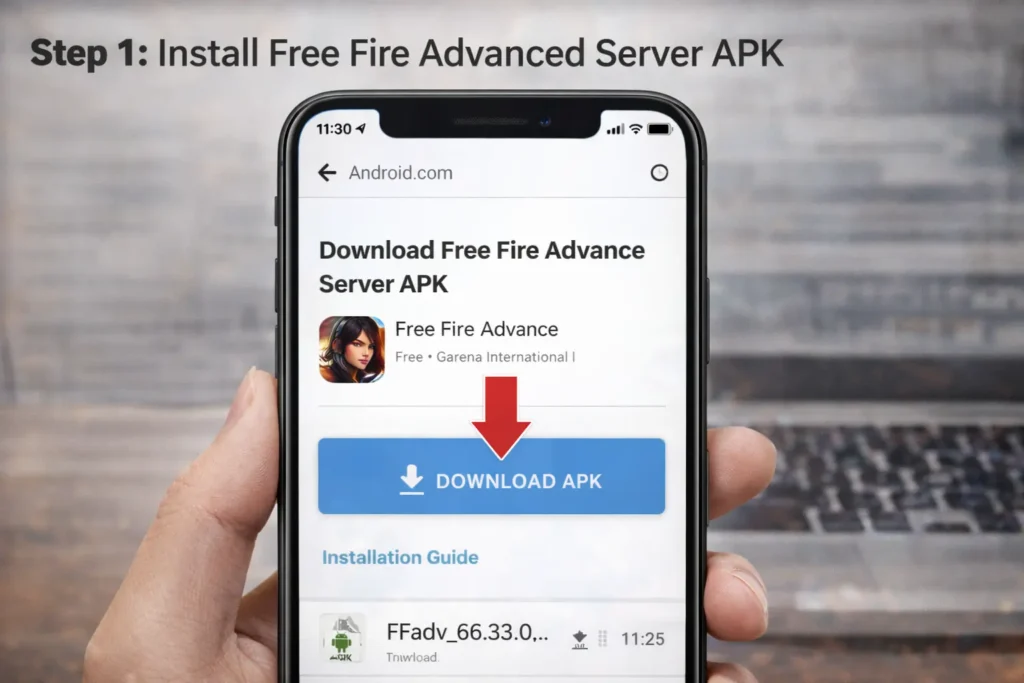
Download and install the APK from the official source only. You can follow the Download Free Fire Advanced Server APK guide for safe installation.
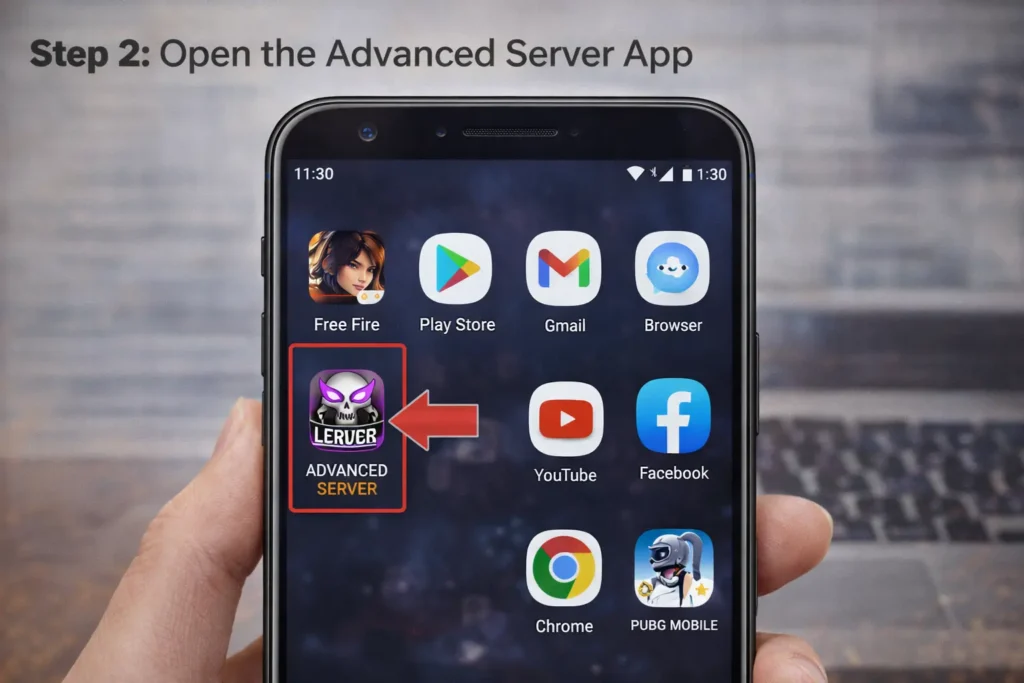
Step 2: Open the Advanced Server App
After installation, look for the Free Fire Advanced Server icon on your device. The icon is different from the regular Free Fire app. Open only the Advanced Server app.
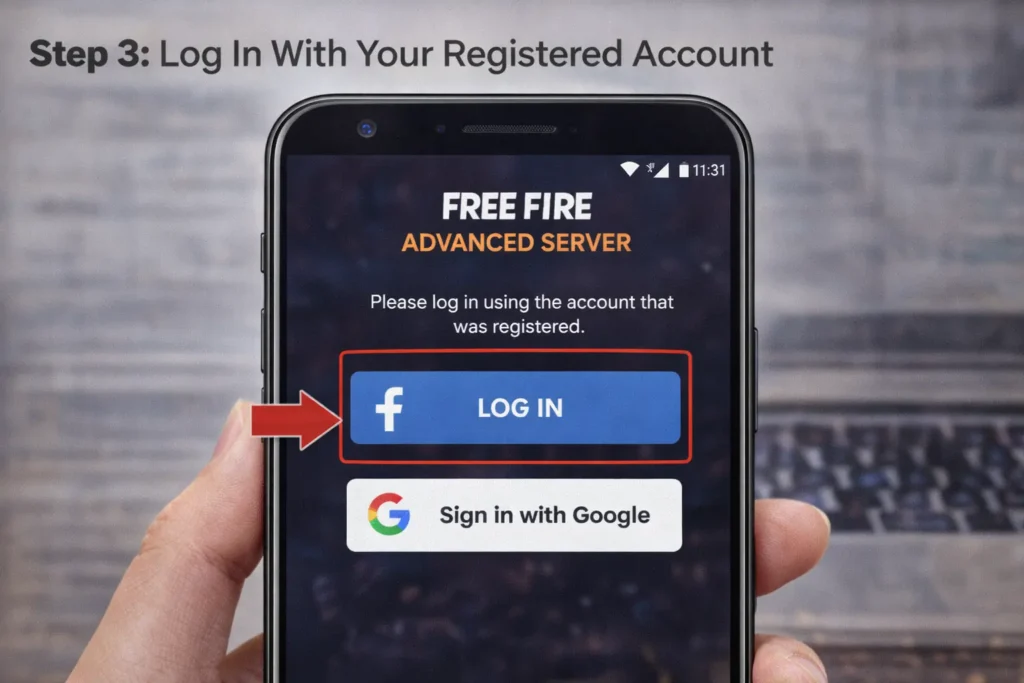
Step 3: Log In With Your Registered Account
Log in using the same account (Google or Facebook) that you used during Advance Server registration. Using a different account will cause login failure.
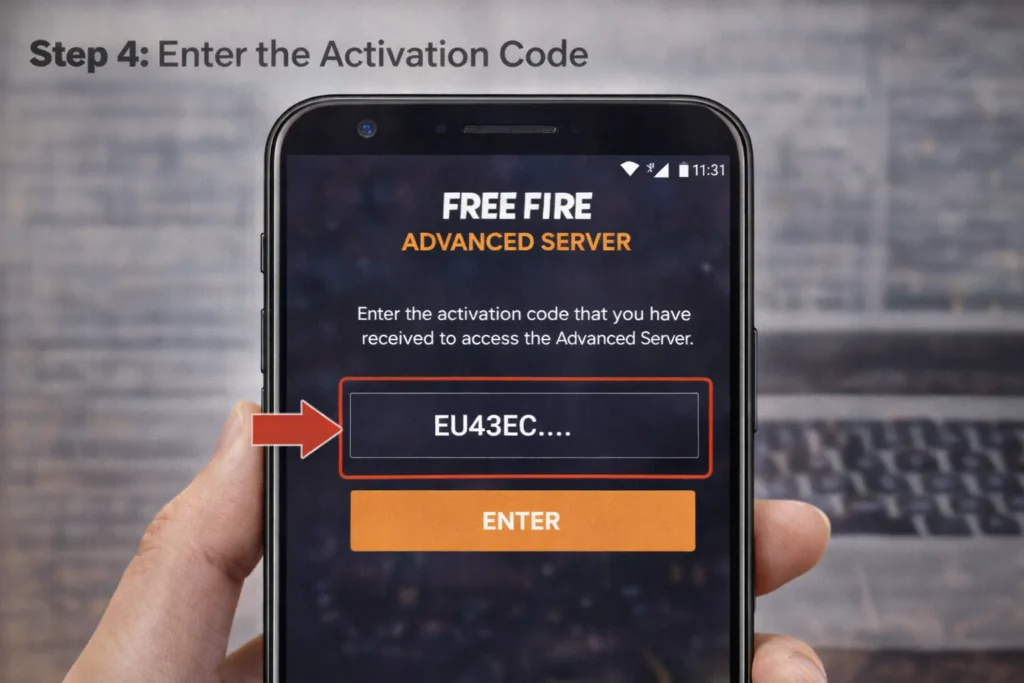
Step 4: Enter the Activation Code
Once logged in, you’ll see a screen asking for an activation code. Enter the code exactly as provided in your approval email.
Activation codes:
- Are one-time use
- Work only during the current test phase
- Cannot be reused on another account
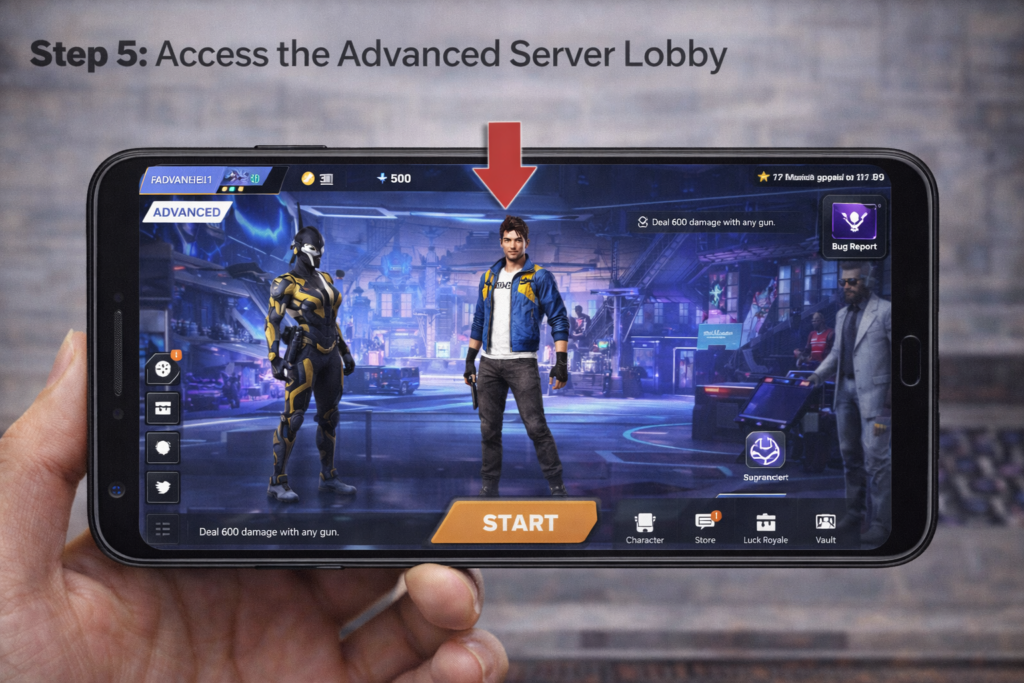
Step 5: Access the Advanced Server Lobby
After successful activation, the Advanced Server lobby will open. You can now test new characters, features, weapons, and updates before they reach the main game.
Why Free Fire Advanced Server Is Not Opening?
If the Advanced Server fails to open, one of these reasons is usually responsible:
- Activation code is expired or invalid
- Server testing phase has ended
- Logged in with a different account than the registered one
- Server slots are full
- Using the normal Free Fire app instead of the Advanced Server app
Rechecking these points fixes most access issues.
Is Free Fire Advanced Server Safe to Open?
Yes, the Free Fire Advanced Server is safe if downloaded from Garena’s official website. It is an official testing platform provided by the developers. Avoid fake or modified Advanced Server apps, as they can compromise your account or device security.
Conclusion
Opening the Free Fire Advanced Server becomes straightforward once you understand that it is a separate testing environment with limited access. Using the correct app, logging in with the approved account, and activating the server during the testing window are the key steps. Staying updated with official announcements and following the proper process helps ensure uninterrupted access to upcoming Free Fire features.
FAQs
Does Free Fire Advanced Server work on all Android versions?
The Advanced Server supports only selected Android versions and may not work on older or heavily customized devices.
Can I switch accounts after opening the Advanced Server?
No, once the server is activated, switching accounts inside the Advanced Server is not supported.
Why does the Advanced Server show maintenance or server busy messages?
This usually means Garena is updating features or the server has reached its testing capacity.
Can I use the same activation code in future Advanced Server phases?
No, activation codes are valid only for the current testing phase and must be renewed each time.
Will using Advanced Server affect my main Free Fire account?
No, activities on the Advanced Server do not affect progress, stats, or rankings in the main game.