
Quick Answer:
Block Free Fire on mobile: Android – Use Google Family Link or Digital Wellbeing to set app limits/block. iOS – Screen Time > App Limits > Games > Set to 1 minute. Third-party apps: FamiSafe, Qustodio, Norton Family. Requires: parent password protection. Free Fire will be blocked/limited based on your settings.
You can Block Free Fire Game on a mobile phone using safe phone settings and control tools. Many parents and users face this issue today. A child keeps playing the game for hours, or a user wants to stop distractions and focus on study or work.
This situation feels common in many homes. Blocking the game matters today because too much gaming affects time, sleep, and daily routine. Phones now offer simple ways to control apps without risk.
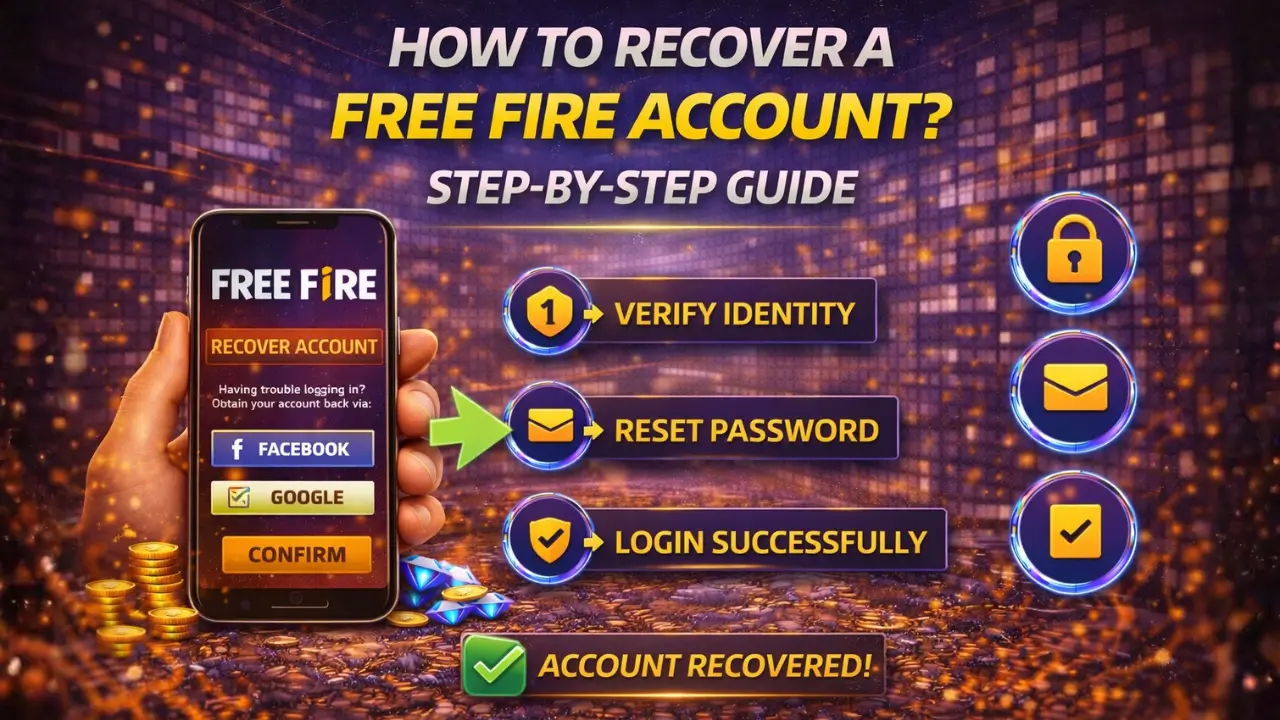
If you worry about access later, options like Recover Free Fire Account are also available. In this guide, you will learn simple steps to block the game on Android and iPhone, step by step.
How to Block Free Fire Game on Mobile
You can block Free Fire on both Android and iPhone using safe phone settings. Android phones offer built-in controls like app limits and family controls. iPhones provide Screen Time to stop apps from opening.
These methods come with the phone, so no risky apps are needed. The steps take only a few minutes and work well for parents and users who want control. Once set, the game stays blocked unless the settings change.
How to Block Free Fire on Android Phones
Blocking Free Fire on an Android phone is simple using built-in settings. You can choose from parental control apps, phone app limits, or Play Store restrictions. Each method is safe and works without extra downloads. Follow these steps to block the game easily.
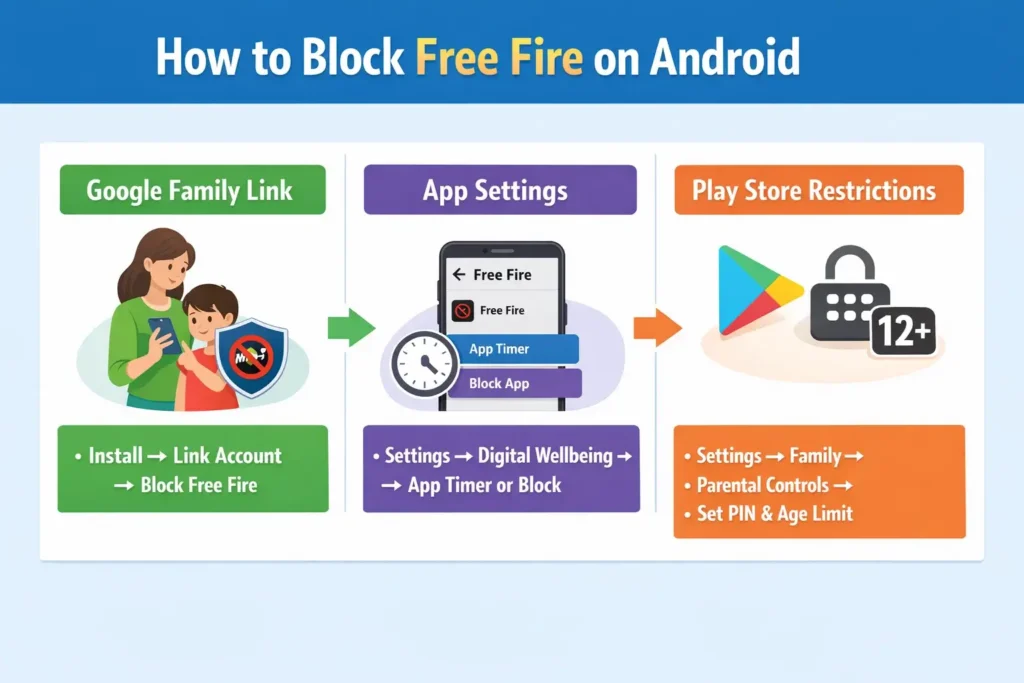
1. Use Google Family Link to Block Free Fire
Google Family Link lets you manage apps on your child’s phone. It blocks Free Fire at the app level, so the game cannot open without permission. This method works best for parents who want full control over app usage.
Steps:
2. Block Free Fire Using App Settings
Android phones allow you to limit or block apps directly using built-in settings. Blocking stops the app completely, while limits allow short usage.
Steps:
3. Block Free Fire from Play Store
You can prevent Free Fire from reinstalling using Play Store restrictions. Age and content controls help manage which apps can install or update.
Steps:
How to Block Free Fire on iPhone
Blocking Free Fire on an iPhone is easy using built-in tools. iPhones have features that let you stop apps from opening, limit usage, or prevent reinstallation. These methods are safe and do not require extra apps. Follow these steps to block the game quickly.
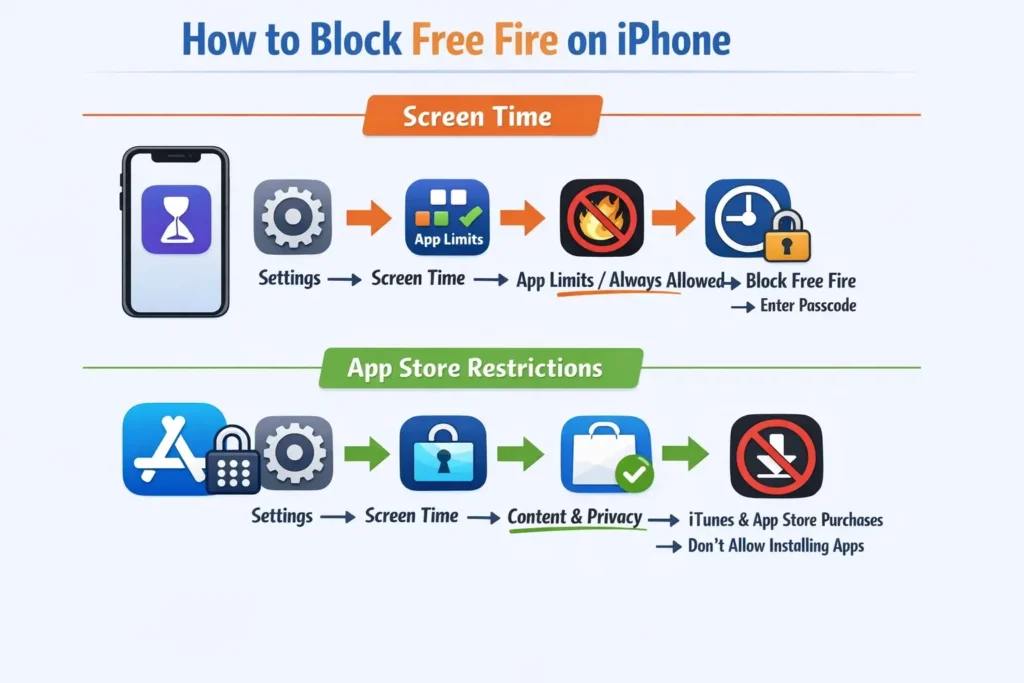
1. Use Screen Time to Block Free Fire
Screen Time lets you control app usage on your iPhone. You can block the game completely or set limits to reduce playtime.
Steps:
2. Block Free Fire from App Store
You can stop Free Fire from being reinstalled by using content and purchase limits. This prevents accidental or intentional downloads.
Steps:
How to Block Free Fire Using Router or Wi-Fi Control
You can block Free Fire by controlling the internet on your Wi-Fi or router. This stops the game from connecting online, which prevents play even if the app is installed. This method works well when multiple devices use the same network, like at home. However, it only blocks access through Wi-Fi, so mobile data will still allow the game to run.
Steps:
When this method helps:
Wi-Fi blocking works well in homes with shared internet, where you want to control all devices at once. It is useful to stop games during study or work hours without opening each phone.
Limits of Wi-Fi blocking:
This method does not work if the user switches to mobile data. It also requires basic knowledge of router settings. Some games or updates may bypass simple blocking rules, so it is not a complete solution on its own.
How to Block Free Fire Without Deleting the Account
You can block Free Fire without deleting the account by using built-in phone controls or app limits. Blocking stops access to the game but keeps your progress, items, and settings safe.
Blocking is different from uninstalling. When you uninstall, the app is removed, but the account can still be accessed later. Deleting an account, on the other hand, removes all progress and items permanently, which you can read more about in Delete ff Account.
This approach matters because it lets you take a break, control playtime, or manage usage without losing achievements, skins, or in-game purchases.
Safe Tips Before Blocking Free Fire
Before you block Free Fire, it is important to prepare. Talk with the user or child first so they understand why access will be limited. This avoids surprise or frustration and makes the process smoother.
Avoid sudden device locks or strict limits without warning. Giving a heads-up helps prevent arguments or confusion.
Keep all settings protected with a password or PIN. This ensures the block cannot be easily removed and keeps the controls in place. Following these steps makes blocking safer, fair, and more effective for everyone.
Common Problems While Blocking Free Fire
Sometimes blocking Free Fire does not work as expected. The game may still open, the app might be reinstalled, or settings may not save properly. These issues are common but easy to fix with the right steps.
Steps to fix common problems:
- Game still opens: Check that all app limits or blocks are correctly applied. Restart the phone after setting limits.
- App reinstall issue: Use Play Store or App Store restrictions and set a PIN for installs.
- Settings not saving: Make sure you are logged into the correct account and restart the phone after saving changes.
Following these steps helps the block work correctly and keeps Free Fire under control.
Is Blocking Free Fire Permanent?
Blocking Free Fire max is not permanent. You can choose a temporary block to stop the game for a few hours or days, or a full block that lasts until you remove it. Later, you can easily unblock the game through your phone’s settings or parental control app. This way, your account, progress, and items stay safe while you control playtime.
Best Option Based on Your Situation
The way you block Free Fire depends on who is using the phone and why:
- For parents of young kids: Use Google Family Link on Android or Screen Time on iPhone. These tools let you block the game completely and set passwords to prevent changes.
- For teens with heavy screen use: Use app limits or time restrictions. This allows short play periods but stops long, distracting sessions.
- For adults taking a break: Use a temporary block through phone settings. You can pause the game for a few days or weeks without deleting your account or losing progress.
Choosing the right method ensures the block is effective without causing frustration or accidental data loss.
Conclusion
Blocking Free Fire is easy and safe using phone tools like app limits, Family Link, or Screen Time. Parents, teens, and adults can control playtime without deleting the account or losing progress.
Prepare first, explain to the user, and protect settings with a password or PIN. You can unblock anytime, keeping your account and items safe. These steps help manage Free Fire, reduce distractions, and balance gaming with daily life.
Frequently Asked Questions
Can I block Free Fire without deleting my account?
Yes. You can use built-in phone tools like Screen Time on iPhone or Family Link and app limits on Android. Blocking stops access but keeps your progress, items, and account safe.
Can I unblock Free Fire later?
Yes. You can remove the block anytime from your phone settings, app limits, or parental controls. Access will be restored without losing progress.
Does blocking work on Wi-Fi only?
Blocking via Wi-Fi stops the game on that network but won’t work if mobile data is used.
What is the safest method for parents?
Google Family Link on Android or Screen Time on iPhone is safest. You can block the game completely and protect settings with a PIN.
Can the game be reinstalled after blocking?
Yes, if app store restrictions are not set. Use Play Store or App Store controls to prevent reinstalling.